Wednesday, June 17, 2015

sed by Example


Syntax: sed [options] 'instruction' file

Actually you can have more than 1 instruction:
sed -e 'instruction1' -e 'instruction2' -e 'instruction3'
The most important sed option is -n. Bear in mind that without using -n option, lines that were not touched by sed will be printed as well. In other words, by using -n sed prints only lines which affected. For example in the following print examples we do need -n otherwise it prints all lines again. 

Important Note: In case of deleting we do not need -n option. 

Important Note 2: Whenever you use -n you must use p in the action section to print in STDOUT. 


Print


To print the 25th line of a file:
$ sed -n '25p' /etc/passwd
To print line 24 to line 26:
$ sed -n '24,26p' /etc/passwd

To print all lines but the 3rd one:
$ sed -n '3!p' /etc/passwd
To print all lines except 3 to 7:
$ sed -n '3,7!p' /etc/passwd
To print the last line of a file:
$ sed -n '$p' /etc/passwd
To print all lines containing test:
$ sed -n '/test/p' /etc/passwd

To ignore case and print all lines containing test, Test, teSt,  etc:
$ sed -n '/test/Ip' /etc/passwd
You can also use Bash wildcards like * and ? in the file name:
$ sed -n '/behnam/Ip' testfile*.txt
If we have a list of names and want to have a range of lines containing those words:
$ sed -n '/nagios/,/ntp/p' /etc/passwd
So it prints lines starting the line containing nagios (1st nagios in the file) through the line containing ntp (again 1st appearance)


To print the line that have the 1st nagios plus two following lines:
$ sed -n '/nagios/,+2p' /etc/passwd
The following example does not work because Regex quantifiers (just for + and ? but not for *) should be escaped by escape character which is \
$ sed -ne '/^b.+'/Ip /etc/passwd
So we should run:
$ sed -ne '/^b.\+'/Ip /etc/passwd
Now it detects and prints Behnam, behnam, bp, BP, etc at the beginning of the lines. As you saw earlier, I is for ignoring case. 

The following example also works by adding -r option to sed and not using \ before +
$ sed -ner '/^b.+'/Ip /etc/passwd

Delete

To delete 1st line: (do not use -n option)
$ sed '1d' /etc/passwd > ~/passwd
To delete last line:
$ sed '$d' /etc/passwd > ~/passwd
To delete lines other than the last line:
$ sed '$!d' /etc/passwd > ~/passwd
To delete every 2nd line beginning of line 3. i.e. line 3, 5, 7, ...  

$ sed '3~2d' /etc/passwd > ~/passwd
To delete all blank lines in the file:
$ sed '/^$/d' /etc/passwd > ~/passwd

Substitute

Most common syntax for substitution is 
sed '/s/LHS/RHS/g' file.txt 
Or you can use /Ig instead of /g for ignoring case sensitivity. 

LHS can be literal and regex, RHS can be literal and back references like & and \1

To delete all blank lines and replaces behnam as well:

$ sed -e '/^$/d' -e 's/behnam/bp/g' /etc/passwd

Note: As you see the syntax is similar to find and replace command in vi:

:s/behnam/bp/g
If you want to do the same but want to create a new file with bak extension:
$ sed -i.bak -e '/^$/d' -e 's/behnam/bp/g' /etc/passwd

To change Behnam in the test01.txt file to bp in the test02.txt file:
$ sed s/Behnam/bp/ test01.txt > test02.txt
Another way to do that is: 
$ cat test01.txt | sed s/Behnam/bp/p > test02.txt
Note: using quotes is highly recommended. If you have metacharacters in the command, quotes are necessary so you'd better type:
$ sed 's/Behnam/bp/' test01.txt > test02.txt
To change Behnam to Behdad:
$ echo Behnam | sed 's/nam/dad/'
As you know, sed is line oriented. So if you have such a file:
one two three, one two four
four two three two one
one hundred and one
And run:
$ sed 's/one/FIVE/' testfile.txt
The output would be:
Five two three, one two four
four two three two FIVE
FIVE hundred and one
Note that this changed one to FIVE once on each line and din touch the 2nd ones. 


To replace all Behnam just in lines which have Pournader:
$ sed '/Pournader/s/Behnam/Ben/g' testfile.txt
$ sed -n '/Pournader/s/Behnam/Ben/gp' testfile.txt
 To replace all Behnam just in lines which starts with Behnam (case insensitive):
$ sed '/^Behnam/Is/Pournader/123/g' testfile.txt

If you want to change a pathname that contains a slash you could use the backslash to quote the slash:
$ sed 's/\/etc\/passwd/' old_file > new_file

Back References

We can Use & as the matched string. & means the full value of matched pattern. 

To search for a pattern and add some characters, like parenthesis, around the pattern:
$ sed 's/[a-z1-9]*/(&)/' old_file > new_file
You can also double a pattern
$ sed 's/[a-z1-9]*/& &/' old_file > new_file
$ echo "123 abc" | sed -n 's/[0-9]*/& &/p'
$ echo "123 abc" | sed -nr 's/[0-9]+/& &/p'
To put "item:" at the beginning of each line: 
$ sed -n 's/.*/item: &/p' testfile.txt
To put "item:" at the beginning of each word: 
$ sed -n 's/.*/item: &/gp' testfile.txt
To search and print lines with a particular pattern:
$ sed -n 's/^Behnam/&/gp' testfile.txt
It is just another way to do:
$ sed -n '/^Behdad/gp' testfile.txt
To match a number between 100 and 99999 and print:

$ sed -n 's/[1-9][0-9]\{2,4\}/&/gp'  

Note: be careful to escape { and } in sed by using escape character \

\1 is the first remembered pattern and the \2 is the second remembered pattern. We can continue up to \9

If you want to keep the 1st word of a line, and delete the rest of the line, mark the important part with the parenthesis:
$ echo "behnam pournader" | sed -n 's/\([a-z]*\).*/\1/p'
[a-z]* matches 0 or more lower case letters (behnam).* matches zero or more characters after the first match (pournader)
Note: Do not forget to use \( and \) to group the pattern when using \1

This returns abc as again [a-z]* matches just abc and .* matches 123:
$ echo "abc123" | sed -n 's/\([a-z]*\).*/\1/p'
So to keep the 1st word of a line and delete the rest of the line, we use:
$ sed -n 's/\([a-z]*\) .*/\1/p' testfile.txt  
Note: Do not forget to put an space before dot. 

If you want to switch two words around:
$ echo "red dog" | sed -n 's/\([a-z]*\) \([a-z]*\)/\2 \1/p'
Note 1: Space between the 2 remembered patterns is there to make sure 2 words are found. If a line just have 1 (or less) word, sed does not touch it in this case. 

Again by using -r, backslash is not needed before ( and ):
$ echo "red dog" | sed -nr 's/([a-z]*) ([a-z]*)/\2 \1/p'
If you want to eliminate duplicated words, you can try:
$ echo "behnam behnam" | sed -n 's/\([a-z]*\) \1/\1/p'
To just detect duplicated words:
$ sed -n '/\([a-z][a-z]*\) \1/p'
To reverse the first three characters on a line:
$ echo "behnam" | sed -n 's/^\(.\)\(.\)\(.\)/\3\2\1/p'
Note: Instead of using [A-Za-z]* which won't match words like "won't", we'd better use [^ ]* that matches everything except a space. This will also match anything because * means 0 or more! 

The following will put parenthesis around just the 1st word in each line: 
$ sed -n 's/[^ ][^ ]*/(&)/' old_file > new_file  
Note: [^ ] is used 2 times in order to avoid matching the null string.

As you see before, if you want to make changes for every word, add a g after the last delimiter. Otherwise it replaces just the 1st match on all lines. 
$ sed -n 's/[^ ][^ ]*/(&)/g' old_file > new_file
To keep the 1st word on the line but delete the 2nd one:
$ echo "red dog" | sed -n 's/\([a-zA-Z]*\) \([a-zA-Z]*\) /\1 /p'


sed Script File

We also can use a sed script file to do that using following syntax: 
sed -f SedScriptFile DataFile01.txt DataFile02.txt
So the contents of sed script file can be
/^$/d
s/behnam/bp/g
Important note: we do not need to escape any character in sed script file.

Labels: ,

Tuesday, June 16, 2015

Regex


Metacharacters have some special meanings in Regex: 


Backslash \
Caret ^
Dollar sign $
Dot .
Pipe |
Question mark ?
Asterisk *
Plus sign +
Parenthesis ()
Square bracket []
Curly brace {}

Note: To use any of above-mentioned characters as a literal in regular expression, you have to escape them with a backslash so to match 2+2=4, enter 2\+2=4. If you do not escape +, it has its special metacharacter meaning. 
The backslash escapes a special character, which means that character gets interpreted literally so \$ means $, rather than its Regex meaning. Likewise \\ has the literal meaning of \

If you are using grep, to find the literal asterisk character in a file, use single quotes, otherwise it shows everything in the file:
$ grep '*' /etc/profile


Brackets

Brackets enclose a set of characters to match in a single regex. so to match an a or an e, use [ae]. You may use this in gr[ae]y to match either gray or grey.

Hyphen is used to show a range of characters so [0-9] matches a single digit between 0 and 9. You may use more than one range like [0-9a-mA-M]. You may also combine single characters and ranges like [0-9a-mzA-MZ] which matches 0 to 9, a to m and A to M plus z and Z. 

Now we are ready to match common word patterns by using combined sequences of characters in square brackets:

[0-9][0-9][0-9][0-9][0-9] matches any US zip code and [Bb][Ee][Hh][Nn][Aa][Mm] matches BEHNAM, Behnam, behNAm, etc 

Example: To list all files in the current directory which start with letter a, b, c, m, or in the range of u to z: (tip: use -d option to avoid getting messy stdout)
$ ls -ld [a-cmu-z]*

Caret

If the the pattern within the square braces starts with ! or ^, any character not enclosed will be matched. I mean inserting ^ after the opening bracket negates the character class so the result is that the character class matches anything that is not in the character class. As an example b[^x] matches "be" in "behnam" but it does not match "pub" because we do not see any character after "b" in "pub". Or [^x-zX-Z] matches any character except those characters in the range of x to y. 

For the use of caret as an anchor, wait a minute to reach to Anchors section of this tutorial. Anchors do not match any character. They match a position before, after, or in between characters. 


Dot

Dot matches almost any character, I mean it matches a single character, except line break characters. So we can say dot is the short form of [^\n]. As an example Behn.m matches Behnam, Behnom, Behn#m, but not Behnm or Behnaam and B... matches Beer and Bear but not Bug.  

Example: To get all six-character words starting with b and ending in m simply enter: 
$ grep '\<b....m\>' /usr/share/dict/words
Note: If the file /usr/share/dict/words does not exists, install words package by issuing: yum install words


Asterisk, Plus and ?


  • Asterisk matches any number of previous characters, including zero instance of characters. 
  • Plus sign is like asterisk but matches one or more previous characters. 

  • ? is also similar to asterisk but matches 0 or 1 of the previous characters. It is generally used for matching single characters like colo?r which matches colour or color.   
Example: [a-zA-Z]* matches zero or more letters, and tries to match as many characters as possible to the end of the word. 

Example: <[A-Za-z][A-Za-z0-9]*> matches an HTML tag with no attributes. <[A-Za-z0-9]+> seems to be easier to write but it matches invalid tags such as <5>


Anchors

Anchors do not match any characters. Anchors match a position. 
^ matches at the start of the string, and $ matches end of the string so ^Behnam matches Behnam at the beginning of a line and Pournader$ matches Pournader at the end of a line. 
^Behnam$ matches lines with only Behnam word. 
^B matches only the first B in BehBam.

Note: As you saw previously in Brackets section, the caret matches the beginning of a line, but sometimes negates the meaning of a set of characters.

Example: to display lines starting with the string "root":
$ grep ^root /etc/passwd

Example: in order to see which accounts have no shell assigned:
‍$ grep :$ /etc/passwd

As we said earlier, $ at the end of a Regex matches the end of a line so Pournader$ matches Pournader at the end of a line and ^$ matches blank lines.

Example: in order to see which accounts have bash as shell:
‍$ grep bash$ /etc/passwd


Word Boundaries 

The angle brackets must be escaped, otherwise they have their literal meanings. \< and \> mark word boundaries: /< matches beginning of a word and \> matches the end of a word. As an example \<the\> matches the word "the" itself but not the words "them", "there", "other", and so on. 

\b Matches the empty string at the edge of a word.
\B Matches the empty string provided it's not at the edge of a word.
\< Match the empty string at the beginning of word.
\> Match the empty string at the end of word.


Alternation

Alternation is Regex equivalent of "or". As an example Toyota|Honda matches Toyota in "I have a Toyota and a Honda". If the regular expression is applied again, it matches Honda too. We can add as many alternatives as we want: Toyota|Honda|Ford|Subaru.

Important Note: Alternation has the lowest precedence of all other operators so 
"Toyota|Honda tire" matches "Toyota" or "Honda tire". To match "Toyota ire" or "Honda tire", we have to group them as: (Toyota|Honda) tire.

Example:
‍$ grep 'be(a|e)r' testfile.txt


Repeating a Pattern

To specify a specific amount of repetition, use curly braces:

  • [1-9][0-9]{3} matches a number between 1000 and 9999
  • [1-9][0-9]{2,4} matches a number between 100 and 99999
  • [0-9]\{5\} matches exactly five digits

Laziness and Greediness

Sometimes Regex does not seem to behave the way you had expected because Regex is very greedy and it matches as large as it can. I mean the answer of 
^F.+: on "From: using the :abc" string is the largest possible match which is 
"From: using the :" not "From:". 
The solution is adding ? which means please be lazy and stop at the 1st so ^F.+?: will match the smallest match which is "From:"

As an another example, the regex <.+> matches <EM>second</EM> in "This is my <EM>second</EM> test" html string. Again, to make it lazy place a question mark after the quantifier so <.+?> matches <EM>.

For more information on this subject consult this link. 


Back Reference

You can use the back reference \1 to match the same text that was matched by the capturing group. 

Example: ([xyz])=\1 matches x=x, y=y, and z=z


Non-Printable Characters

Use \t to match a tab character (ASCII 0x09), and \n for line feed (0x0A). 

Note: Bear in mind that text files in Microsoft Windows use \r\n to terminate lines. UNIX text files simply use \n


Shorthand Character Classes

\d matches a single character that is a digit 
\w matches a "word character" (alphanumeric characters plus underscore)
\s matches a white-space character (includes tabs and line breaks)

Labels: ,

grep by Example


Syntax: grep 'word' file1 file2 file3

To find all lines containing behnam:
$ grep -i behnam /etc/passwd
To search recursively i.e. read all files under /etc:
$ grep -r 192.168.1.5 /etc/
To search only behnam not behnamp:
$ grep -w behnam test.txt
To search 2 different words:
$ egrep -w behnam|behdad test.txt
To report the number of times that the pattern has been matched:
$ grep -c behnam test.txt

To precede each line of output with the number of the line in the file:
$ grep -n root /etc/passwd

Tp print all lines that do not contain behnam:
$ grep -v behnam test.txt
To find out how many lines does not match the pattern:
$ grep -v -c behnam test.txt
To display lines starting with the string "root"
$ grep ^root /etc/passwd
To filter the name of the hard disk partitions in dmesg output: 
$ dmesg | egrep "(s|h)d[a-z][1-9]"

Note: The above example does not work with grep and as you see we used egrep instead. egrep is nothing but grep -E which switches grep into a special mode so that the expression is evaluated as an Extended Regular Expression as opposed to its normal pattern matching.

To list text files whose contents mention behnam:
$ grep -l behnam *.txt
To display output in colors:
$ grep --color root /etc/passwd
To search a string in a Gzip compressed file:
$ zgrep –i behnam test.tar.gz
To see which accounts have no shell assigned
$ grep :$ /etc/passwd

To display all words starting with b and ending in m:
$ grep '\<b.*m\>' test.txt
To display the lines which does not match 2 or more patterns: 
$ grep -v -e "pattern 1" -e "pattern 2"
To show the position of match:
$ grep -o -b root /etc/passwd

Labels: ,

Thursday, May 21, 2015

How to change host name in CentOS / REHL

In CentOS /RHEL 7, we have 3 host names:

1. Static host name a.k.a. kernel host name, is initialized from /etc/hostname file at boot time so to change it you can simply enter the new name in this file. 

2. Transient host name, is a temporary host name assigned by a DHCP server or such a program. 

Note: static and transient host names follow the same rules as Internet domain FQDNs so for example you can not use space character in these host names. 

3. Pretty host name, is a free-style form name that you can put on the computer such as "Behnam's Server"

hostnamectl is a new command in CentOS 7 which allows you to view or change the host name. To change all 3 kind of host names at the same time, enter:
# hostnamectl set-hostname www.pournader.com
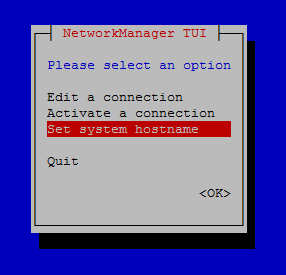
Another way to change the host name is using nmcli or nmtui:
#nmtui
And you will face such an interactive and easy-to-use text user interface:


Note: You do not have to reboot the machine to activate permanent host name change. Just log out and log in again to see the new host name in the prompt. 

If you want to change just one type of the host name simply specify the type of host name as below:
# hostnamectl --static set-hostname www.pournader.com
To clear a particular host name and let it revert to its default:
# hostnamectl --transient set-hostname ""


If you run version 6 or 5 of CentOS / RHEL, steps are totally different. You should do the following:

a. Use hostname command to change the host name:
# hostname www.pournader.com
b. Open /etc/sysconfig/network and edit HOSTNAME value to what you want to put on the host. 

c. Open /etc/hosts and add the appropriate line. Actually this step is not necessary. Also you can do in CentOS / RHEL 7 if you want. 

d. restart network service:
# service network restart
Note: Do not assume by doing the above-mentioned steps your machine becomes available in Windows network. If you want your machine advertise its name on the Windows network, you have to install and configure Samba package and set netbios name directive in Samba configuration file. Consult this post to configure Samba on CentOS / RHEL 7. 

The easier solution might be adding your host name and its IP to the DNS server.

Labels: , , ,

Monday, May 18, 2015

How to Use Wildcards in Linux Commands


Wildcard is a character that can be used as a substitute for any character in a search to increase the flexibility and efficiency of searches. Consult the following list for the usage:


* matches zero or more characters
? matches exactly one character
[abcde] matches exactly one character listed in square brackets
[a-e]  matches exactly one character in the range
[!abcde] matches any character that is not listed
[!a-e] matches any character that is not in the given range
{centos,rhel} matches exactly one entire word in the options given

To list all files in current directory which have an .html or a .jpeg extension:
$ ls *.html *.jpeg
To delete all files and folders in current directory which have the string behnam in their name:
$ rm -rf *behnam*
The following command provides data on all files and folders whose names are one, two or three characters in length:
$ file ? ?? ???
Or the following returns the list of all objects in the current directory that have a three-character or four-character extension:
$ ls *.??? *.????
To show all files that have an extension which starts with a, b or c:
$ ls *.[abc]*
And this one returns information about all files and folders whose names begin with any letter from "a" through "e" or begin with "m" or "n" or "o":
$ file [a-emno]* 
To copy all html and pdf files to home directory you can use curly brackets and enter: 
$ cp {*.html,*.pdf} ~
Note: Do not put space after the commas.  

Labels: ,

Saturday, May 16, 2015

How to Use Openfiler Linux as an iSCSI Target


Openfiler is an easy-to-configure Linux distribution as an iSCSI target but as its community is not active, it is not recommended to be used other than in lab environment. For production environments try other solutions like freeNAS.

1. installation is as easy as older versions of CentOS /RHEL as it uses Anaconda as its installer. After installation you may see such a page:


Which tells you you can access the web admin UI via system's IP address and port 446. 

2. Open a browser and enter https://<host ip>:446
The default username is openfiler and password is password.

3. After login, immediately go to Accounts > Admin Password and change the default password. 

4. Go to Services and enable and run the iSCSI service. 


5. We are reserve and use the 2nd NIC with IP range of 172.16.X.X in an isolated network just for the purpose of storage so go to System > Network Setup and do the proper changes(if you haven't done in Anaconda)


6. Go to Volumes > Block Devices and create a partition on the 2nd hard drive by clicking on /dev/sdb. 
We assume that you have two physical hard drives, 1st drive is reserved for OS and the 2nd drive is for setting up iSCSI target. 
Click on create in order to create a partition on the drive:


7. The PV is now ready. You should create a VG and then create as many LV as you like inside the VG. 
Click on Volumes > Volume Groups, name your VG and check the /dev/sdb volume and click on Add volume group as the following screenshot:
8. We create LV by choosing Volumes > Add Volume fill the fields and click on Create. 


And do the same to create 2nd LV:


9. Add an iSCSI target by going to Volumes > iSCSI Targets. Then name your target IQN or accept the default name and click on Add. Then go to LUN Mapping on top and click on Map buttons for all LVs in order to map them as LUN 0 and LUN 1. You may face such a picture: 


10. Go to Network ACL on top to set Access Control List. You may see such a message: "A list of networks have not been created yet.You cannot configure network access control unless you create a list of networks in the Local Networks section. Until that time, this iSCSI target will be unavailable."
If you haven't configured ACL in Local Networks section, go ahead and configure:


Go back to Volumes > iSCSI Targets > Network ACL and change the value to allow then click on Update.

Your IP Storage is now ready to use.

Labels: , ,

Wednesday, May 13, 2015

Environment Variable


To see a shell’s variables, issue set command or run:
$ printenv
The scope of the variable is the shell in which it’s defined so to make a variable and its value available to other programs, you can enter:
$ export BPVAR   
Or the shortcut for defining and exporting simultaneously is:
$ export BPVAR=3
This variable is now called an environment variable because it is available to other programs in the shell’s environment. 

Example: To add directories to your shell’s search path temporarily, modify its PATH variable. For example, to append /usr/sbin run: 
$ PATH=$PATH:/usr/sbin
To make your change permanent, you should edit bash startup file which is a hidden file in the home directory: 
$ vi ~/.bash_profile 
Then log out and log back in to load the contents. 

Labels: ,

Monday, May 11, 2015

Notes about Administrator Users in CentOS/RHEL 7


1. To prevent users from logging in directly as root, including yourself!, you can set the root's shell in /etc/passwd file to /sbin/nologin. 

2. To limit access of users to run su command is adding administrators to an admin group entitled "wheel":
# usermod -G wheel behnam
Then we need to only allow these admin users to run su. So edit the PAM config file for su which is located at /etc/pam.d/su. You should open /etc/pam.d/su file and uncomment the following line by removing the hash mark:

  auth           required        pam_wheel.so use_uid

3. Only the users listed in /etc/sudoers file can to use the sudo command. 

Note: Each successful authentication by sudo will be logged to /var/log/messages and the command issued by the user will be logged logged to /var/log/secure logfile. 

The main advantage of the sudo is that different users can access to only specific commands based on their permissions. You can edit /etc/sudoers by using visudo command to do this. 

For example to give a user full privileges, enter visudo and add the following line in the user privilege section:

  behnam ALL=(ALL) ALL

It means now behnam can use sudo command from any host and can execute any command. 

Or by adding the following line to sudoers file in /etc

  %users localhost=/sbin/systemctl shutdown -r now

Any user can run /sbin/systemctl shutdown -r now as long as it is entered through the console.

In CentOS, sudo stores the sudoer's password for just 5 minutes. If you use it during this period. it will not prompt for a password. This setting can be changed by adding the following line to the sudoers file in /etc:

  Defaults    timestamp_timeout=value

Setting the value to 0 causes sudo to require a password every time. 

Very important: If a user account with sudoer's privilege is compromised, the attacker/cracker can use sudo to open a new shell with full rights by typing the following command: 
# sudo /bin/bash


Opening such a shell as root in such cases gives the attacker/cracker administrative access for ever! 

Labels: , , , ,

Sharing a folder for different users to work on files on a CentOS/RHEL Linux machine


Task: We have a group of people who need to work on files in a shared directory. We need to set permissions for the shared folder and avoiding file permissions conflict. 
# mkdir /opt/bp-project
# groupadd bp-project
# chgrp bp-project /opt/bp-project
# chmod 2775 /opt/bp-project
Now all members of the bp-project group can create and edit files in /opt/bp-project/. Now the root or other admin users should not go ahead and change file permissions every time the users create new files. 


As you see, the group permission in changed from rwx to rws by using 2775 permission on our file. "s" is a special permission flag indicates the setgid. It also can represent setuid if it shows in the file permission section.  

setuid is usable just for executable files, when we set such a permission on an executable file it runs as the user who owns the file (instead of the user who invoked the executable file).

Note: You can put setuid flag on not executable files but it will be showed as S. The capital S informs you that this setting is probably wrong because the setuid bit is useless if the file is not executable.


Octal digit 4 represents setuid and 2 is for setgid so in the above screenshot, abc.txt file has 4744 and the bp-project directory has 2775. 

Note: If you set setuid for a directory it will be ignored by Linux. 

For more information about setuid consult Wikipedia entry. 

Labels: , , ,